Introduction
WordPress is one of the most popular CMS at the moment due to its high usage in over 40% of websites globally.
Created to design and develop simple weblogs in 2003, this open source is now a popular tool to develop various websites, ranging from simple blogs to professional websites.
And it is because of its easy-to-use features, a lot of themes and plugins available, and full support of the developers and end users.
WordPress has largely contributed to web development, involving the ease and flexibility of use, making the management of content online simple for millions of users.
How Secure is WordPress?
WordPress is basically very secure; the core code is very well coded and updated by a team of professional coders at regular intervals due to new loopholes found.
The platform is used by numerous active users who can address security issues in the platform and mitigate them promptly.
Another important aspect that must be noted is that the WordPress core should be updated frequently because the updates also contain numerous security fixes.
Also Read: Rising WordPress Plugin Vulnerabilities in 2025
However, for a WordPress site to be more secure, just having a secure core is not enough; the way users manage their sites also influences the security of the website.
While it still has the technical strength of the CMS to back it up, its reliance on third-party themes and plugins presents possible security vulnerabilities. If not updated frequently or properly checked for malicious programs, software add-ons can turn into gateways for hackers.
Also Read: The Ultimate WordPress Security Guide to Safeguard Your Site and Data
Those who neglect updating their themes and plugins, use easy-to-guess passwords, or do not take any measures towards security are likely to find their site prone to attacks.
Thus, although WordPress core remains secure, maintaining a WordPress site that is secure is a painstaking exercise in user management, updating in particular, and using the right passwords, limiting the number of login attempts, and using the right security plugins to survey and shield your site against these threats.
Common WordPress Attacks & Vulnerabilities
WordPress sites are at risk and threats of being attacked and being under certain threats, and that’s why site administrators should be on the lookout for any incident and take necessary measures.
Here are some of the most common threats:
Brute Force Attacks
Brute Force Attacks are hacker techniques where a set of programs is used to try to gain access username and password of any WordPress website. These attacks take advantage of easily guessable passwords and standard usernames.
Also Read: Massive Brute Force Attack Uses 2.8 Million IPs to Target VPNs and Firewalls
To address this, one should ensure they employ complex & different passwords, avoid using the default administrator logins, and practice other security measures such as banning multiple login attempts and two-factor authentication.
SQL Injection (SQLi)
SQL injection is one of the most critical types of attacks that permit an attacker to manipulate the data of the site’s database by entering malicious SQL code into the input fields.
This can lead to unauthorized entrance and access to the data, or even worse, the data can be manipulated, or the administration of the website can be seized.
To prevent SQLi attacks, you always ensure that you use prepared statements with parameterized queries, and you must also ensure that you validate inputs and that your database management systems and software are up to date.
Cross-Site Scripting (XSS)
XSS attacks involve the situation where attackers insert code into a website that is viewed by other users. These scripts can pilfer off session tokens, cookies, or sensitive data/information and can genuinely perform malevolent operations in place of the user.
Two main types of XS can be categorized as ‘stored’ and ‘reflected’, or ‘ persistent and non-persistent.
Also Read: 80,000+ WordPress Sites at Risk: A Dangerous XSS Vulnerability in Popular WooCommerce Review Plugin
The best incident prevention and control measures are to ensure all user inputs are sanitized and encoded, and to implement content security policies (CSPs) to restrict the origins of scripts that can be loaded and executed.
Also Read: Most Common WordPress Security Issues & Solutions
Why is WordPress Security Important?
WordPress security is critically important for several reasons:
Protecting Sensitive Data
When entering any website, we give them personal details, credit card details, usernames and passwords, and many other essential data.
Unauthorized access can result in loss of data by the attacker, which poses a threat to users in terms of identity fraud and loss of cash through fraud. This means that strong security programs safeguard this information from various bad actors in society.
Maintaining Site Integrity
A hacked website can be subject to changes where the most visible page of a targeted website is replaced with undesirable content and or other changes that hinder its usability.
These questions can lead to the eradication of faith from users in the site, or even more frightening, pollute the image of the site among the general public.
By prioritizing security, site administrators can prevent the occurrence of such issues and guarantee the viewers that their site remains functional and free from any interference.
Preventing Financial Loss
For e-commerce sites, security breaches can be quite costly because of theft, fraud, and in the event of legal probes.
Also, the expense in case of a security breach to contact security consultants and clean up the mess, retrieve data from failed systems, and manage the incident could be high.
Paying for measures to secure an establishment leads to reduced chances of incurring such losses.
Causes of WordPress Security Issues
The vulnerabilities that can be acquired in WordPress are many and have influenced many factors because WordPress is an extended and connected system.
Here are some common causes:
Outdated Software:
One of the main reasons for the security problems is using old WordPress core, themes, and plugins installed on a website.
The updates usually fix known issues, including security flaws, which means that a site is vulnerable to attacks if the software is not updated.
Weak Passwords:
Consequently, through brute force attacks, it becomes easy for attackers to access a WordPress site by using simple or commonly used passwords. It is a well-known fact that one of the main ways to penetrate a system is by using weak passwords.
Vulnerable Plugins and Themes:
Plugins and themes are the primary ways to add new features to WordPress and adapt its capabilities to a specific website, but they are often unreliable from a security perspective.
Plugins and themes that were developed with poor coding or are outdated are likely to contain security loopholes that hackers will take advantage of..
How to Secure a WordPress Site Using Plugins?
Security plugins are add-ons that help WordPress websites improve their security by enhancing their features with various layers of security.
As security plugins are also used to improve WordPress security, the second challenge can also be solved.
At the same time, it is possible to become oversaturated with their addition, and this threatens to hurt website traffic. Start with the particular security requirements of your website so that you can filter out the best plugins.
Set up two-factor authentication for WP-Admin
Secure your WordPress login process by increasing the use of factors of authentication to two, also known as two-factor authentication (2FA). This creates an extra layer of protection; the user is required to enter a code that is usually provided in their phone through a text message or generated by their authenticator application.
To use 2FA, first, get a plugin, for instance, Wordfence Login Security, and a second app, such as Google Authenticator. Follow these steps:
- First, they will proceed to the plugin’s management area located in the WordPress admin dashboard, then go to the Login Security sub-tab.
- As usual, go to the settings and look for the Two-Factor Authentication tab.
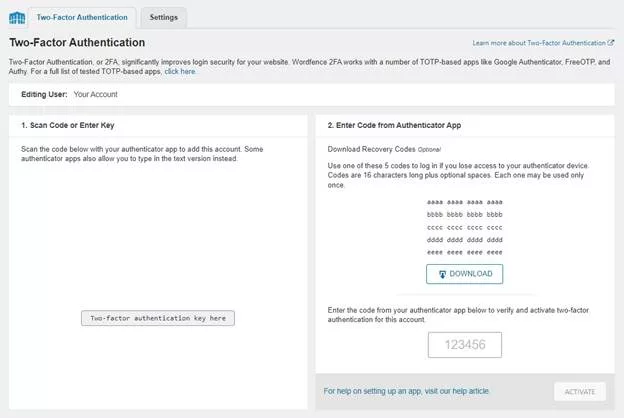
- Enter the given activation key through the code scanner or through the mobile application using the QR code.
- To make the changes permanent, enter the code from the app into the correct field and press the ACTIVATE button.
Creating Backups of your WordPress Site
Backing up data should be done frequently in case of a disaster like hacking, a fire, or any other hazard that may happen to the data center. Back up your site using other means, such as a plugin all-in-one WP migration for both the database and the core files.
Here’s how you can do that:
- Firstly, download the plug-in and then later activate it.
- After getting into the All-in-One WP Migration plugin, click on Backups option.
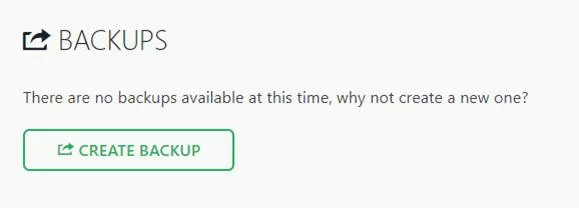
- Click Create Backup.
- Once a backup is created, it will now be present in the list on the Backups page.
- This makes it easy to save and store the backup in a secure location. To do this, go to the All-in-One WP Migration tab, then select Export.
- From the “EXPORT TO” options, choose the file format to create the backup file.
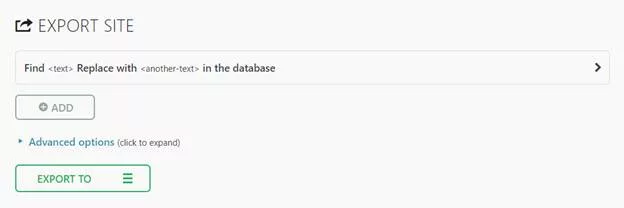
- Once done, make sure to utilize the appropriate download button to save the backup in an area that is quite distinct from the web server hosting your website.
It is advisable to do this since data that is backed up on the server is at risk of being attacked because the server is accessible to the public.
Limit Login Attempts
Disable brute force attacks by restricting the number of times attempts are made on login credentials. In another way, hackers use different passwords at different times to break into a system.
Use plugins like:
- Limit Login Attempts Reloaded: Defines the number of login attempts allowed before locking and the number of minutes the IP is locked when it fails to log in.
- Loginizer: Some of the listed features include 2FA, reCAPTCHA, and challenge questions.
- Limit Attempts by BestWebSoft: Mainly deals with the problem of blocking IPs that exceed a certain number of login attempts.
However, for the persons using such a site for genuine purposes, the possibility of account lockout is still there, but not permanent.
Modify URL to WordPress Login Page
For added security, modify the default login URL or simply, the login page URL (yourdomain. com/wp-admin). The other way is to use the plugins available, like WPS Hide Login, to mask the URL.
Here’s how:
- Go to the dashboard and show in the Settings option WPS Hide Login.
- To set custom you should fill the Login URL section with your custom login URL.
- Click “Save Changes” when you are done.
Automatically Log Idle Users Out
To reduce the risk of malicious activity from users who have left their browser session open, you should plan how to automatically log out a user after a certain period of inactivity.
This is particularly relevant where the set of devices includes computers that are common to multiple users. Some of them are Inactive Logout, which not only logs users out but also provides a triggering notification before the process.
How to Secure WordPress Without Using Plugins?
To secure WordPress without relying on plugins, one must make alterations to the content and files of the site as well as the actual server settings.
Although it involves somewhat higher levels of technical sophistication, it is clearly more flexible and allows for closer management of your site’s protection.
Here’s a detailed guide on how to secure WordPress without using plugins:
Disabling PHP Error Reporting
PHP error reporting comes in handy, especially when developing an application, so that the PHP scripts can be debugged easily; however, the same facility can accidentally give away valuable information about your site’s file organization to crackers or hackers.
To Disable PHP Error Reporting:
Access your site’s wp-config.
Upload the PHP file to your web directory via your Favorite FTP client or use your web hosting control panel’s file manager.
Add the following lines of code to the file, preferably before any other PHP directives:
error_reporting(0);
@ini_set('display_errors', 0);
Review the changes and click on the save button to ensure the changes made reflect on the file.
Indeed, the specific options for PHP in the hosting control panel can allow the user to configure the level of error reporting, for example. It can also be turned off via Settings in your hosting control panel, too.
Migrating to a Secure Web Host
First of all, it is necessary to mention that the level of security directly depends on the hosting providers with whom you host your WordPress website.
Hence, if your existing web host does not provide sufficient security for your website, it is advisable to shift to a safer web host.
When choosing a new hosting provider, consider the following factors:
- Hosting Type: You should select the hosting plans as VPS (Virtual Private Server) or dedicated hosting because they provide better isolation and security compared to shared hosting.
- Security Measures: Choose hosts that apply active security policies such as continuous network monitoring, software updates, and shields against different types of attacks.
- Features: When picking a host, consider some of its features, such as backup settings that operate automatically, scanning for malware, and web application firewalls, to improve the security features of your site.
- Support: Always ensure that your chosen hosting provider has friendly and dedicated customer care to help you in case of any security incidents or other related problems.
Disabling File Editing
WordPress also has its file editor, which can be used to edit the theme and plugin files through the admin area of your website.
However, this feature can be dangerous and can be exploited for malicious reasons.
To disable file editing:
- Open your site’s wp-config. php file.
- Add the following line of code to the file: define(‘DISALLOW_FILE_EDIT’, true);
- Having typed all the changes to the file, save them.
- Restricting file editing minimizes modifications made to your website’s theme and plugin files using the WordPress backend console by other users who may not have authorized access to the site.
Limitations of Access with the. htaccess File
The .htaccess file is a configuration file that enables you to set a range of control parameters and security measures for your website.
Some options that can be used are:
Use of the .htaccess file to control the access of specific files and directories, and other measures towards security.
Below are some of the ways that you can apply:
- Disabling PHP Execution in Specific Folders: Prep. or rev. the. To secure potential vulnerable areas within the WordPress installation, it is recommended to disable the execution of PHP scripts in the .htaccess file within the vulnerable directories, such as the wp-content/uploads/. It can also prevent attacks like malicious uploads and file injections.
- Protecting wp-config. php: Returning to the context of regular expressions, add rules to the . rules on the htaccess file so that it can only allow configurable access to the wp-config. sensitive data.
For instance, the database credentials that the php file is likely to contain. For instance, by restricting the access to this file one can control who can preview it or change inside information.
Changing the Default WordPress Database Prefix
WordPress utilizes the default database table prefix of “wp_” to constitute the database tables of the site; this makes the site more susceptible to SQL injection attacks.
Another advantage you get when you decide to change the default database prefix is security, because it becomes difficult for an attacker to access your database.
It would be best if you backed up the WordPress database before making any improvements to avoid data loss in a negative outcome.
- Open your site’s wp-config. php file.
- Find the line in the configuration file containing the database table prefix that starts with “$table_prefix”.
- Replace this prefix with a new prefix of your choice (e. g., “wp_newprefix_”).
- Make sure to save the contents of the file with the modifications made to it.
This required changing the database prefix found in the wp-config. WordPress database, you will also find that the tables stored in the WordPress database have been renamed to the new prefix you have used in your php file. It can be done through the phpMyAdmin interface or through a query command that is input into the database.
Also Read: Is your Site Hacked? Essential Steps to Fix or Repair Hacked Website
Some Best Practices for Securing a WordPress Website
Use an SSL Certificate
The use of an SSL certificate allows for the securing of data that users pass between the site and them, thus ensuring data security. It also aids in enhancing the site’s ranking on the search engines and improves confidence among its visitors.
Always Update Your WordPress, Plugins, & Themes
It’s recommended to upgrade your WordPress core, plugins, and themes frequently to await the patch of security flaws or to obtain new essential features.
Passwords
A strong password is difficult for others to guess, and any account with a default password should be changed.
Secure Credentials
Setting a new, difficult password is also recommended for each user, and avoiding the use of the general login “admin”. It is, however, recommended that better protection be employed by using a password manager.
Enable Two-Factor Authentication (2FA)
Two of the important security recommendations are that one must incorporate two-factor authentication to improve the strength of the login process by using a second form of identification.
Limit Login Attempts
To mitigate excessive traffic from brute force attacks, you should plug and play to limit the number of access attempts from one IP address.
Install Security Plugins
Use popular plugins such as Wordfence, Sucuri, or iThemes Security to make use of features including scans for malware, the firewall, and secure login.
To avoid facing such problems in the future, it is recommended that you back up your website regularly.
Backup Strategy
This should be kept on a routine basis with plugins that enable one to download the entire site, which includes the database and core files. These plugins include UpdraftPlus and All-in-One WP Migration. Store backups off-site.
Change Default Login URL
Hide the WordPress admin and login page from the WordPress site URL, from as wp-admin or wp-login. Use php to add a suffix to the URL, thus complicating the attempts by the attackers in searching for the login page where they could inject WS irrespective of its position.
How to Improve WordPress Site Security?
Keep WordPress, Themes, and Plugins Updated
By frequently making updates to the WordPress core, themes, and plugins, you can have the most current version.
Such updates usually contain security fixes that safeguard your site from attacks, thus preventing someone from exploiting the weaknesses found in your site. This is advisable so as to patch any minor vulnerabilities or bugs that may be released by the developers in between the major releases.
Use Strong Passwords and Two-Factor Authentication
All the user accounts where in particular the admin accounts should use complicated privileges to protect their accounts. Enable Two Factor Authentication to shore up the security aspect related to user login.
This involves requesting additional identification, which can be through a mobile application or an SMS code, in case someone tries to log into an account that they are not authorized to use.
Install a Security Plugin
For instance, Wordfence, Sucuri, or iThemes Security plugins can give a wrap defense to your website. These plugins feature in the likes of viruses and malware scanners, firewalls, and real-time threat notifications.
It can also help in making sure of the execution of security measures, and it can notify you of the risks involved.
Limit Login Attempts
Disable user login options to prevent brute force attacks by restricting the times a user is allowed to attempt to log in.
It is possible to manage this through free security plugins that have the option of locking out particular IP addresses after realizing a certain attempted login. It helps decrease the possibility of getting unauthorized access by automated programs.
Use SSL/TLS Encryption
This one is obvious – Buy an SSL/TLS certificate to provide data encryption between your site and web users. This way, the essential data, including users’ personal accounts and login information, will be transferred safely.
This also increases the credibility of the site and helps in its ranking with the Search Engine Optimization (SEO).
Conclusion
At Certera, we know that managing a WordPress site can also be a security nightmare or, at the very least, a lot of work. Our WordPress security plan is a one-stop shop to secure your WordPress website from various cyber risks.
We offer SiteLock Security Services that give you protection against all possible theft and attacks with the help of real-time monitoring inluding CDN, backup, malware scanning, and more, firewalls, and more.
Our team of professionals is always working to protect your website and keep any unauthorized individuals away who might compromise your site’s security.