How to Fix unable_to_get_issuer_cert_locally Error?
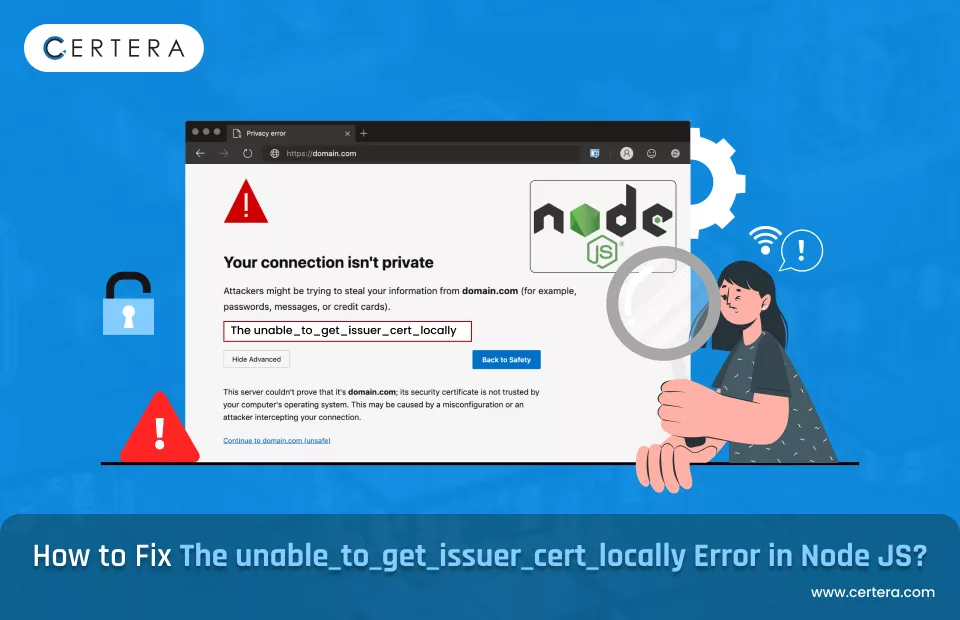
While using Node JS, have you been greeted by the unable_to_get_issuer_cert_locally warning message? If the answer is – Yes, then there is no need to tell you how troublesome and frustrating it is.
If the error is not fixed, then it can give rise to other connection error which can create even more issues while creating a secure and encrypted SSL connection or during the handshake process.
If you are one of such individuals who is facing the same issue and want to get it fixed but don’t know exactly what to do or how to do it, then you are at the right place.
In this piece, we will explore all there is to know about the unable_to_get_issuer_cert_locally error in great depth, as in – What exactly is this error? What are the reasons why the error pops up? And the most important part – How to fix it? So, let’s dive in.
What is unable_to_get_issuer_cert_locally Error?
The unable_to_get_issuer_cert_locally error is a warning message that pops up in Node.js when the application (Node.js in this case) is unable to find the Certificate Authority that issued the SSL cert in the local trust store.
When this happens, the Node.js application is not able to verify the authenticity of the SSL certificate and pops up the unable_to_get_issuer_cert_locally warning message.
Apart from this, the error in discussion can also pop up if the intermediate certificates and root certificates are not bundled correctly or properly with the server certificate. The error occurs mainly if a self-signed certificate is utilized or an SSL certificate is issued by a private certificate authority rather than by renowned ones like – Certera, RapidSSL, GeoTrust, Comodo, and DigiCert.
Reasons Behind Unable to Get Issuer Cert Locally Error Pops Up
The unable_to_get_issuer_cert_locally error pops up when the Node JS application is unable to validate the authenticity and trustworthiness of the certificate chain without first validating the issuer certificate. And it is not possible to validate the issuer’s certificate as its not available in the local system’s trust store.
Also Read: How to Fix “SSL Certificate Problem: Unable to get Local Issuer Certificate?”
How to Fix unable_to_get_issuer_cert_locally Error?
To fix the error, you can use the eight (8) techniques or methods that are listed below. It’s advised to start with the first mentioned technique, and in case it does not make the error go away, move on to the subsequent (next) one.
One of these methods listed below will surely make the warning message disappear.
Method 1: – Find the Problematic Cert
Method 2: – Verify Chain of Trust
Method 3: – Momentarily Disable Rigid SSL Verification
Method 4: – Alter Default Public Registry Version to HTTP
Method 5: – Insert a Root Certificate in the Node JS Trust Store
Method 6: – Alter CAfile Settings
Method 7: – Configure Node JS to Use Custom CA Store
Method 8: – Turn Off Certificate Verification
Method 1: Find the Problematic Certificate
The first thing that you should try to do is to find the problematic cert because of which the unable_to_get_issuer_cert_locally warning is popping up.
You can accomplish the same by adding an error handler (code) given below:
const express = require('express');

const https = require('https');

const fs = require('fs');

const app = express();

const options = {

  key: fs.readFileSync('/path/to/private.key'),

  cert: fs.readFileSync('/path/to/certificate.crt')

};

const server = https.createServer(options, app);

server.on('error', (error) => {

  console.log('Caught exception: ' + error.message);

  console.log('Certificate details: ' + error.context.cert);

});

server.listen(3000);
Once it has been added, it will log in the details of the problematic certificate. In case, if you are not utilizing Express, access the cert from the socket.getPeerCertificate() method on the Transport Layer Security socket.
Method 2: Verify Chain of Trust
If you have the certificate, the next step that you should take is to verify whether the chain of trust is correctly established or not. To accomplish the same, you have to cross-check whether the server certificate is signed by an Intermediate CA cert and whether a trusted Root CA certificate signs that Intermediate CA cert.
Also Read: Root Certificate vs Intermediate Certificate
If you are using Linux or macOS, use the OpenSSL software library to inspect the certificate chain. To do the same, use the command:
openssl x509 -in /path/to/certificate.crt -text –nooutOnce done, verify whether the Authority Key Identifier and Subject Key Identifier match the certificate chain or not.
You can also use the command to validate the chain:
openssl verify -verbose -CAfile ca-chain.cert /path/to/certificate.crt This command will try to verify the cert and build the chain.
If you are a Windows user, you can use the CertUtil command line program. Use the command:
certutil -verify /path/to/certificate.crtIn case the chain is broken, you have to bundle Root CA as well as Intermediate certificates with the server cert to fix it.
Method 3: Momentarily Disable Rigid SSL Verification
In case you are facing the issue in the discussion even after adding the certificate to the trusted list or if you are unable to acquire or get the registry’s SSL certificate, you can disable the rigid SSL verification.
But do remember that this method is temporary and you should enable it as soon as possible as if not enabled, you can be a victim of a cyber attack.
To accomplish the same, use command:
npm config set strict-ssl falseOnce done, verify whether the issue is resolved or not. After verifying, enable rigid SSL verification by using the command:
npm config set strict-ssl trueMethod 4: Alter Default Public Registry Version to HTTP
By default, the Node Package Manager, a.k.a. NPM public registry version, is set to HTTPS. Hence, you need to change the default settings.
Follow the steps mentioned below to alter the default public registry version:
- Click Start, placed on the taskbar.
- Type Command Prompt and press Enter.
- The Command Prompt window will appear.
- In the Command Prompt window, type the command:
- npm config set registry http://registry.npmjs.org/
- Press Enter.
- Verify whether the issue still persists or not.
Method 5: Insert a Root Certificate in the Node JS Trust Store
If, even after using the methods mentioned above, you are still facing the unable_to_get_issuer_cert_locally error, then you can make the error disappear by adding a root certificate that is not part of the system’s default catalogue of trusted certs in the Node JS trust store.
If you are using a MacOS or Linux system, use the command:
export NODE_EXTRA_CA_CERTS=path/to/my-certs.pemIf you are using a Windows system, use the set NODE_EXTRA_CA_CERTS=C:\\path\\to\\certificate.pem command.
Method 6: Alter CAfile Settings
To make the unable_to_get_issuer_cert_locally warning message go away you can also alter CAfile settings. Doing this will make the Node JS use a specific certificate file as its reference in order to verify whether the site is trustworthy or not.
To accomplish the same use the command:
npm config set cafile /path/to/root/certificate.pemMethod 7: Configure Node JS to Use Custom CA Store
In case you are not able to add the root CA to the custom store, you can set up the Node JS application in such a way that it uses a custom CA store specified in the Privacy Enhanced Mail (PEM) file to authenticate connections rather than the system store.
While creating the HTTPS server, specify the CA option that points to your pem file, which consists of trusted CA certs.
Use the below code to accomplish the same:
const https = require('https');

const options = {

  key: ...,

  cert: ...,

  ca: fs.readFileSync('/path/to/ca-cert.pem')

};

https.createServer(options, app);
Method 8: Turn Off Certificate Verification
Turning off the certificate verification can surely get the issue fixed, but this method is not recommended. The reason behind not recommending this method is that once the certificate verification is turned off, all the information that’s shared or transmitted between the server and the client can be intercepted and exploited by a malicious actor.
This method should only be used when you are in a testing phase of a non-production environment. As during that time, the chances of data exploitation and interception is very less. Apart from that data security is also not a critical factor at that stage.
To disable the Node JS certification verification, use the export command: (Not recommended!!)
NODE_TLS_REJECT_UNAUTHORIZED=0 To enable the Node JS certificate verification, use the command:
export NODE_TLS_REJECT_UNAUTHORIZED=1In a Nutshell
The unable_to_get_issuer_cert_locally is a frustrating error, but there are eight methods that can be employed to fix it. Start with the first method, and if it does not work, move on to the next one. We are sure one of these methods will make the error go away.

Remove Browser Security Warnings
Get rid of Browser Security Warnings like Not Secure Connection and Your Connection is Not Secure by Adding SSL Cert to Website.
Starts at Just $3.99/Year