How to Enable HTTP/2 on IIS?
Introduction
HTTP/2 is the newest version of HTTP, and it provides substantial enhancements in terms of performance over the prior version. If you have a website that resides on IIS, you can readily activate HTTP/2, which has the potential to provide faster pages, decreased Latency, and overall better user experience.
Please consider this guide as a step-by-step instruction on how to enable HTTP/2 on the side of your IIS server.
Prerequisites
Before you begin, ensure your system meets these requirements:
- Windows Server 2016 or Newly Released Versions
- IIS 10. 0 or later
- The certificate compliant with SSL/TLS standards, on your server
Steps to Enable HTTP/2
Verify IIS Version: First, check your IIS version:
- Open IIS Manager
- In the “Connections” pane, right click the server name
- Then in the center pane, there will be an icon labeled “Server Certificates” Double click on it.
- As for the location of the version number one should check the field “IIS Version”.
Install SSL Certificate: If you haven’t already, Install an SSL Certificate:
- Right-click on the “Connections” pane in IIS Manager and then choose your server.
- Double-click “Server Certificates“
- In the case of actions choose ‘Import’ and go through the procedure of importing your certificate.
Bind SSL Certificate to Your Site:
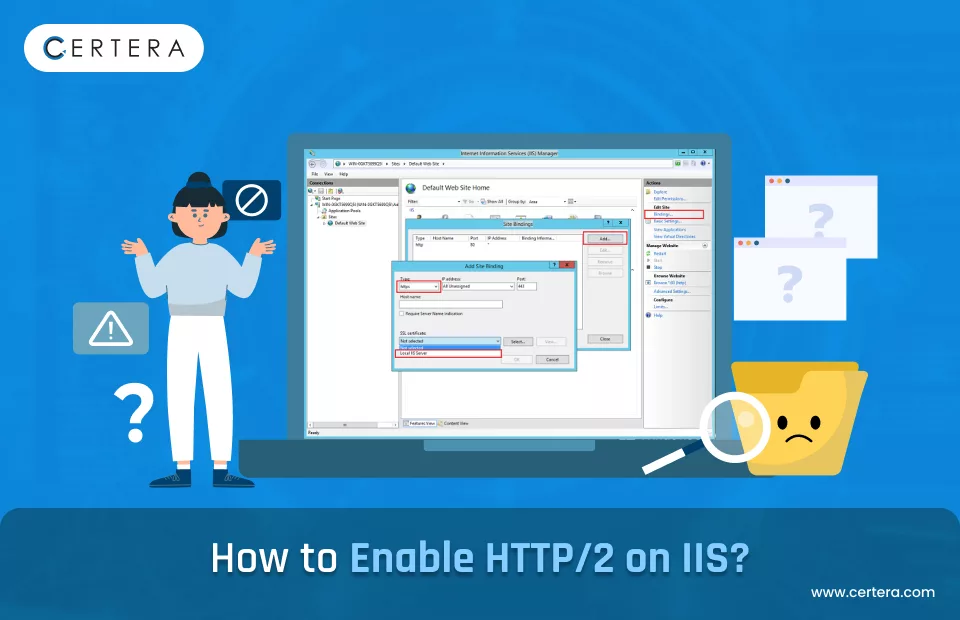
- Select your server and then click on ‘Sites’ in the IIS Manager console tree as shown below.
- Choose your site right-click and click on edit bindings
- Click on “Add” and from the “Type” drop down select “https”.
- Choose your SSL certificate and set the port as 443
- Press the OK button on this report to save the binding.
Also Read: How to Install SSL Certificate on Microsoft IIS?
Enable HTTP/2:
You might be surprised to learn that HTTP/2 is enabled by default on IIS 10 on all your HTTPS connections. To ensure it’s active:
- Click ‘Windows Key + X’ to open the Windows Menu, then click on ‘Windows PowerShell (Admin)’.
- Run the following command:
Get-WebConfiguration -filter system. webServer/http2 - It is self-explanatory that if “enabled” is set to “True”, HTTP/2 is already enabled
Enable HTTP/2 (if not already enabled):
If HTTP/2 is not enabled, you can activate it with this PowerShell command:
Set-WebConfiguration -filter system. webServer/http2 -PSPath IIS:-value @{enabled=”True”}Restart IIS: After making changes, restart IIS:
- The next step is to open a command prompt in Windows as an administrator.
- Run the command: iisreset
Also Read: How to Enable HTTP/s on IIS?
Verify HTTP/2 is Enabled
To confirm HTTP/2 is working:
Use Online Tools
- Visit https://tools.keycdn.com/http2-test
- Enter your website URL and check the results
Browser Developer Tools
- Go to the website that you have created with Chrome or Edge browser.
- In order to use some of the features, you need to press the F12 key to open the Developer Tools.
- Click on the tab labeled network
- Look for “Protocol” in the connection details
Wrapping Up
All in all, the HTTP/2 has to be enabled on the IIS server as it helps a lot to improve the site’s performance. That way, through these steps you have made your site compatible with the new developments in technology where the internet is a concern so that those visiting your site can have a better experience in their internet usage.
Take your HTTP/2 configuration to the next level with our handpicked SSL certificate. Not only do our certificates ensure the safety of your site but they also clear the path for magical HTTP/2.